Image guides9 min read
JPEG XL in Chrome: what it is and how to convert to and from .jxl
We put JPEG and JPEG XL side by side at the same file size, measured lossless sizes, and added .jxl to our free image converter. Here's what we found.
On October 6 the Chrome team said Chrome will open JPEG XL images, starting with Chrome 155. If you've followed this format for a while, that's a bit of a surprise. Chrome had JPEG XL behind a flag years ago and took it out in 2022. Safari added it in 2023, Firefox switched it on this month, and now Chrome is coming back to it with a new decoder written in Rust.
So we did two things. We added JPEG XL to our image converter, in both directions: you can turn a JPG, PNG or WebP into a .jxl file, and you can open a .jxl and save it as something else. And we sat down with one photo and a few test files to see if the format is as good as people say.
Short version: at small file sizes it's clearly better than JPEG, and the difference is easy to see. Lossless, it beat PNG on everything we tried, but WebP won one of the tests. The details, and the pictures, are below.
Same file size, side by side
Our test photo is a 1600 by 1067 picture of Lago di Braies in northern Italy: sky, bare rock, trees, and a lot of water. We saved it as a JPEG at quality 20, which gave a 100 KB file. That's harsh, but it's about what a thumbnail or a slow-connection version of a page gets.
Then we ran the same photo through the JPEG XL encoder our converter uses and picked the highest quality that still came in under the JPEG's size. That was quality 40, at 99 KB. So the two files below cost the same to download.
Drag the bar. Look at the sky first, then at the rock on the left.
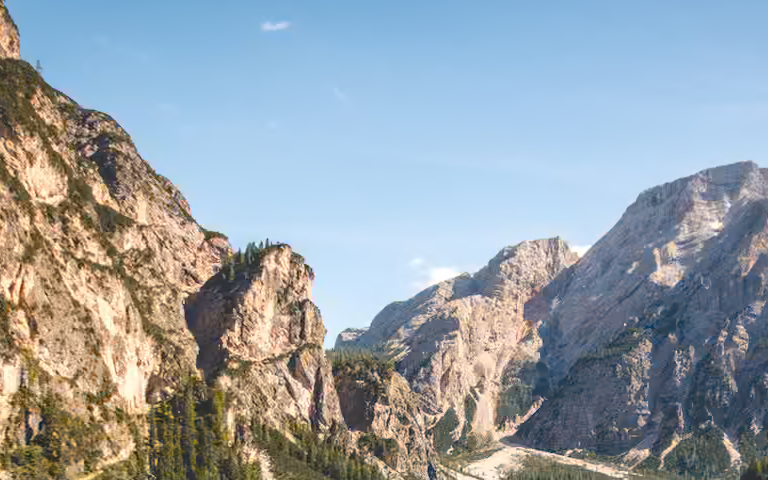
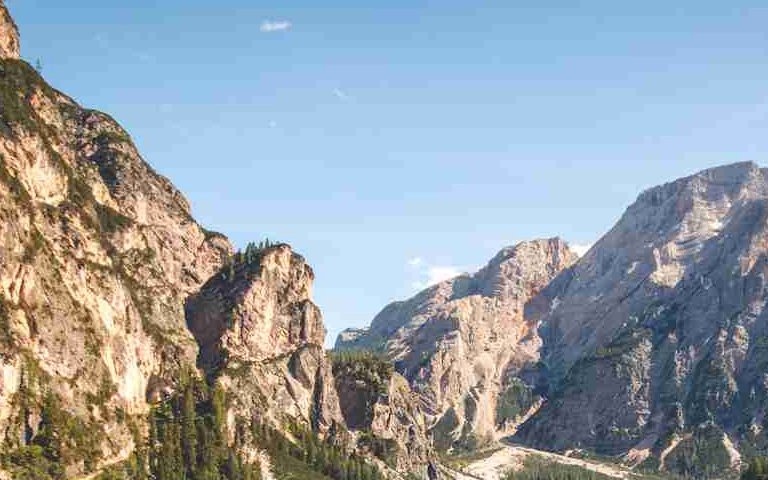 JPEG, 100 KBJPEG XL, 99 KB
The water is the hard part
Water is full of small detail that never repeats, and every lossy format struggles with it. Here the JPEG breaks into 8-pixel blocks and picks up speckles of the wrong color around the boat. The JPEG XL file has no blocks, but look closely and you'll see it has smoothed some of the ripples away.
Neither one is perfect at this size, and we didn't want to hide that. At normal settings, say quality 80 and up, both formats look fine and the only thing you'd notice is the file size. We pushed it this hard so you can see where each one gives up first.
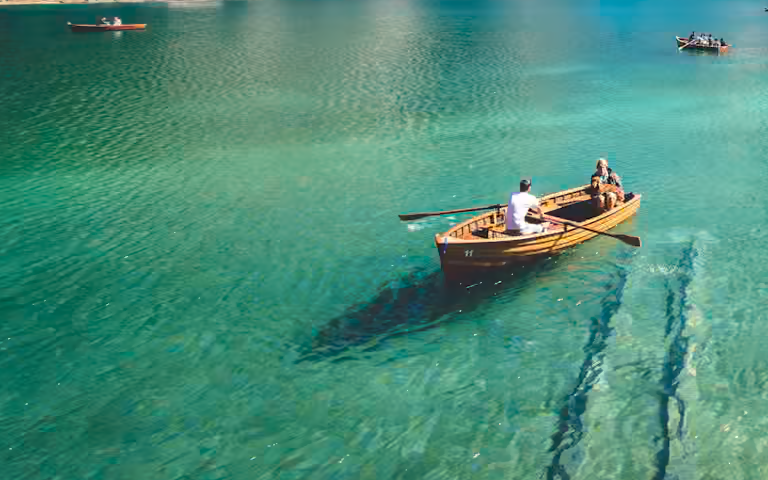
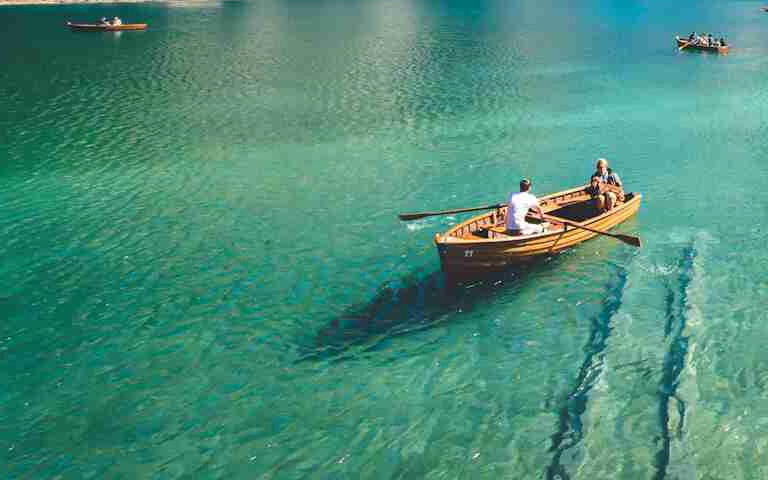 JPEG, 100 KBJPEG XL, 99 KB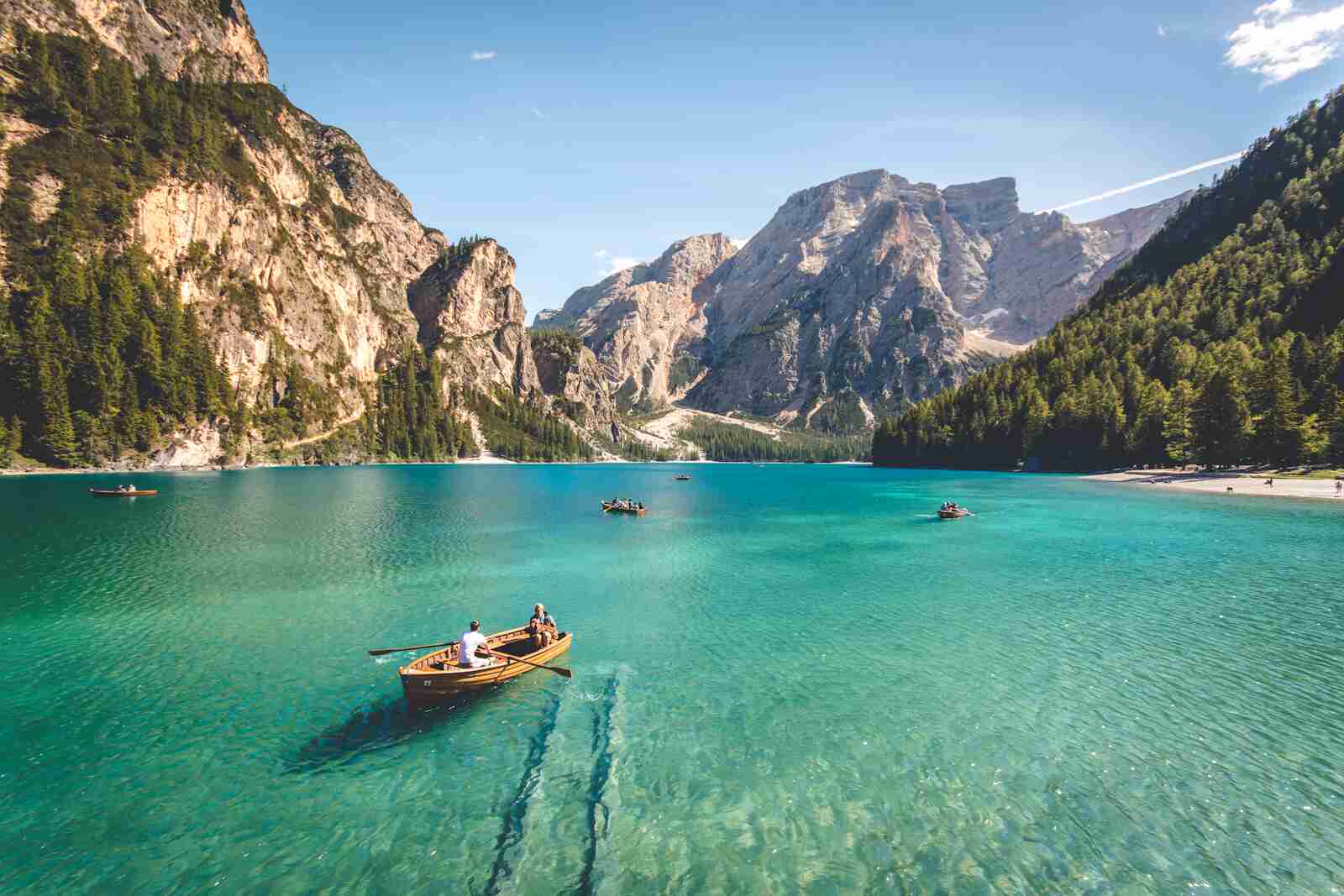
Can your browser open it?
This box checks the browser you're using right now. It tries to show a tiny .jxl picture and reports what happened.
Checking whether this browser can open JPEG XL…
- Safari has opened JPEG XL since version 17, on Mac, iPhone and iPad.
- Firefox turned it on for everyone in version 158, this month.
- Chrome opens it from version 155. Edge, Brave, Opera and other browsers built on Chrome usually follow a few weeks later.
- GIMP, Krita and recent versions of Photoshop and Lightroom can open and save it too.
Lossless: smaller than PNG, but not always the smallest
JPEG XL also has a lossless mode, where every pixel comes back exactly as it went in. That's the job PNG usually does, so we compared the two, and added lossless WebP because it's the other common choice. We used the highest compression setting each tool offered, except JPEG XL, where we kept the converter's normal setting.
On the photo, JPEG XL was 24 percent smaller than PNG and a little smaller than WebP. On a screenshot of our own converter page it still beat PNG by 11 percent, but lossless WebP came out ahead. Flat colors and sharp text are what WebP's lossless mode was built for, and it shows.
| Picture | PNG | Lossless WebP | Lossless JPEG XL |
|---|---|---|---|
| Lake photo, 1600 × 1067 | 2.98 MB | 2.38 MB | 2.27 MB |
| Screenshot, 1280 × 1240 | 244 KB | 152 KB | 217 KB |
If you need a lossless copy of a photo, JPEG XL is a good pick. For screenshots and diagrams, try both WebP and JPEG XL and keep the smaller one. Our converter makes that a two-minute job.
Shrinking old JPEGs without changing a pixel
This is the feature we like most, and the one most people don't know about. JPEG XL can take an existing JPEG and repack it into a smaller file, without decoding and re-compressing the picture. Nothing about the image changes, and you can turn the .jxl back into the exact same JPEG later, byte for byte.
We tried it on a quality 85 JPEG of the lake photo. The JPEG was 432 KB, and the repacked JPEG XL was 362 KB, 16 percent smaller. If you have a folder of 50,000 old photos, that's real space back for free.
To be clear about what our converter does: it works from the pixels, the same way it does for every other format. That's fine for a single photo, but it's a new compression, not a repack, so it isn't reversible. For repacking a big archive, use the free cjxl tool from the JPEG XL project. It repacks a JPEG automatically when you give it one:
# Repack a JPEG into JPEG XL (no quality is lost)
cjxl photo.jpg photo.jxl

# Get the original JPEG back, identical to the one you started with
djxl photo.jxl photo-again.jpg
Using JPEG XL on a website
Browsers that can't read JPEG XL will just show a broken image, so don't use it on its own yet. Put it in a picture element with a fallback. Each browser takes the first format it understands and skips the rest:
<picture>
  <source srcset="lake.jxl" type="image/jxl">
  <source srcset="lake.avif" type="image/avif">
  <img src="lake.jpg" alt="Lago di Braies" width="1600" height="1067">
</picture>
The Chrome team suggests using JPEG XL and AVIF together, not picking one. AVIF is very good at small sizes. JPEG XL is at its best for high-quality photos and lossless files.
When you might need this
- You want smaller photos on your website without them looking worse.
- Someone sent you a .jxl file and your app can't open it.
- You want a lossless copy of a photo that takes less space than PNG.
- You want to check how JPEG XL compares with JPEG or WebP on your own pictures.
How to do it
- Open the Image Converter and choose your picture. It takes JPG, PNG, WebP, AVIF, GIF, BMP, HEIC and JPEG XL.
- To make a .jxl file, pick JPEG XL as the format. Leave Lossless off for photos and set the quality. Turn Lossless on for screenshots or anything you'll keep editing.
- To turn a .jxl file into something else, choose it, wait a second for the preview, and pick JPEG, PNG, WebP or AVIF.
- Click Convert image. The converter shows the new file's size and how it compares with the original.
- Download the file. Your original stays exactly as it was.
Free, with no account. Open it in a new tab and follow along.
Open Image ConverterTips
- For photos, start at quality 80 and go down a step at a time. Check the sky, skin and fine textures at full size before you settle.
- Comparing quality numbers between formats doesn't tell you much. JPEG at 80 and JPEG XL at 80 aren't the same thing. Compare the file sizes and look at the pictures instead.
- Keep your original. Converting a lossy file to another lossy format loses a little more each time, so always start from the best copy you have.
- If you share a photo with someone and don't know what they use, send a JPEG. Use JPEG XL where you control what opens it: your website, your archive, your own apps.
- The first JPEG XL conversion on a page takes a moment longer while the encoder loads. After that it's quick.
Tools that help next
- HEIC, HEIF & AVIF converter. For iPhone photos and other newer formats.
- Batch Image Resizer. Make your photos the right size before you convert them.
- EXIF Viewer and Remover. Check and remove the location and camera details in a photo.
Common mistakes
- Renaming a .jpg to .jxl. That changes the name, not the file, and apps that try to open it as JPEG XL will refuse it.
- Putting a .jxl file on a web page with no fallback. Older browsers will show a broken picture.
- Expecting the converter to repack a JPEG reversibly. It makes a new compression from the pixels. Use cjxl for byte-exact repacking.
- Choosing lossless for a photo you're putting on the web. It keeps every pixel, but the file can be ten times bigger than a good lossy one.
How this compares to Smallpdf, iLovePDF and Adobe
Squoosh, Google's image tool, also makes JPEG XL files in the browser, and it's a good tool. Our converter uses an encoder from the same family, so the results are close. The difference is that ours also opens .jxl files, and it sits next to the rest of our image and PDF tools.
CloudConvert, Convertio and similar sites handle .jxl, but you upload your photo to their servers first, and the free plans have limits. Ours runs on your device, with no upload and no account.
Smallpdf and iLovePDF are built around PDFs, and as far as we can tell neither one offers JPEG XL. With Adobe, you get JPEG XL through Photoshop or Lightroom, which do it well but need a paid plan.
For whole folders, the cjxl command line tool or a desktop app like XnConvert will be faster than any browser tab. For one or a few pictures, a browser tab is usually less trouble.
| Criterion | Smallpdf | iLovePDF | Adobe Acrobat online | Easy File Tools |
|---|---|---|---|---|
| Where your file is processed | On their servers, after you upload it | On their servers, after you upload it | In Adobe's cloud, after you upload it | In your browser, on your own device |
| Account or sign-in | Asked for early, and needed once you pass the free allowance | Optional for small jobs, needed for bigger ones | Most online tools need an Adobe ID | Never needed |
| Usage limits | A few free tasks, then an upgrade prompt | Daily task and file limits on the free plan | The free web tools are mostly a preview of the paid plan | No task counters and no daily limits |
| File size ceiling | The free plan limits upload size | The free plan limits upload size | Cloud upload limits apply | We don't set one. Your device's memory is the practical limit |
| Works without a connection | No, their server does the work | No, their server does the work | No, the cloud does the work | Yes for the browser tools, once the page has loaded |
| Cost | Paid subscription for full access | Paid subscription for full access | Paid Acrobat subscription for full access | Free. Every tool is open to everyone |
Other services change their plans and limits often, so treat this as a rough picture and not a price list. Check their websites for the current details.
Frequently asked questions
- What is JPEG XL?
- It's an image format made by the same group behind the original JPEG, finished in 2022. It does lossy and lossless compression, keeps wide color and HDR, supports transparency and animation, and can repack old JPEGs into smaller files with no change to the picture. The file ending is .jxl.
- Is JPEG XL better than AVIF or WebP?
- It depends on the picture and the size you want. In our tests JPEG XL did very well on photos, and lossless WebP won on a screenshot. At very small sizes AVIF is often the best. Test with your own pictures, which is quick with the converter.
- Can I open .jxl files on Windows?
- Recent versions of GIMP, Krita and Photoshop can open them, and so do Firefox and, from version 155, Chrome. If nothing on your computer opens one, convert it to JPG or PNG with our converter.
- Is my photo uploaded when I convert it?
- No. The JPEG XL encoder and decoder run inside the web page. Your file stays on your device.
- Does the converter keep transparency?
- Yes for PNG, WebP and JPEG XL. JPEG has no transparency, so transparent areas turn white.
- Does it keep HDR and wide color?
- Not yet. The converter works with ordinary 8-bit color, so an HDR .jxl file comes out as a normal picture.